> ## Documentation Index
> Fetch the complete documentation index at: https://mkbrr.com/llms.txt
> Use this file to discover all available pages before exploring further.
# GUI Application
> mkbrr's graphical user interface for desktop users
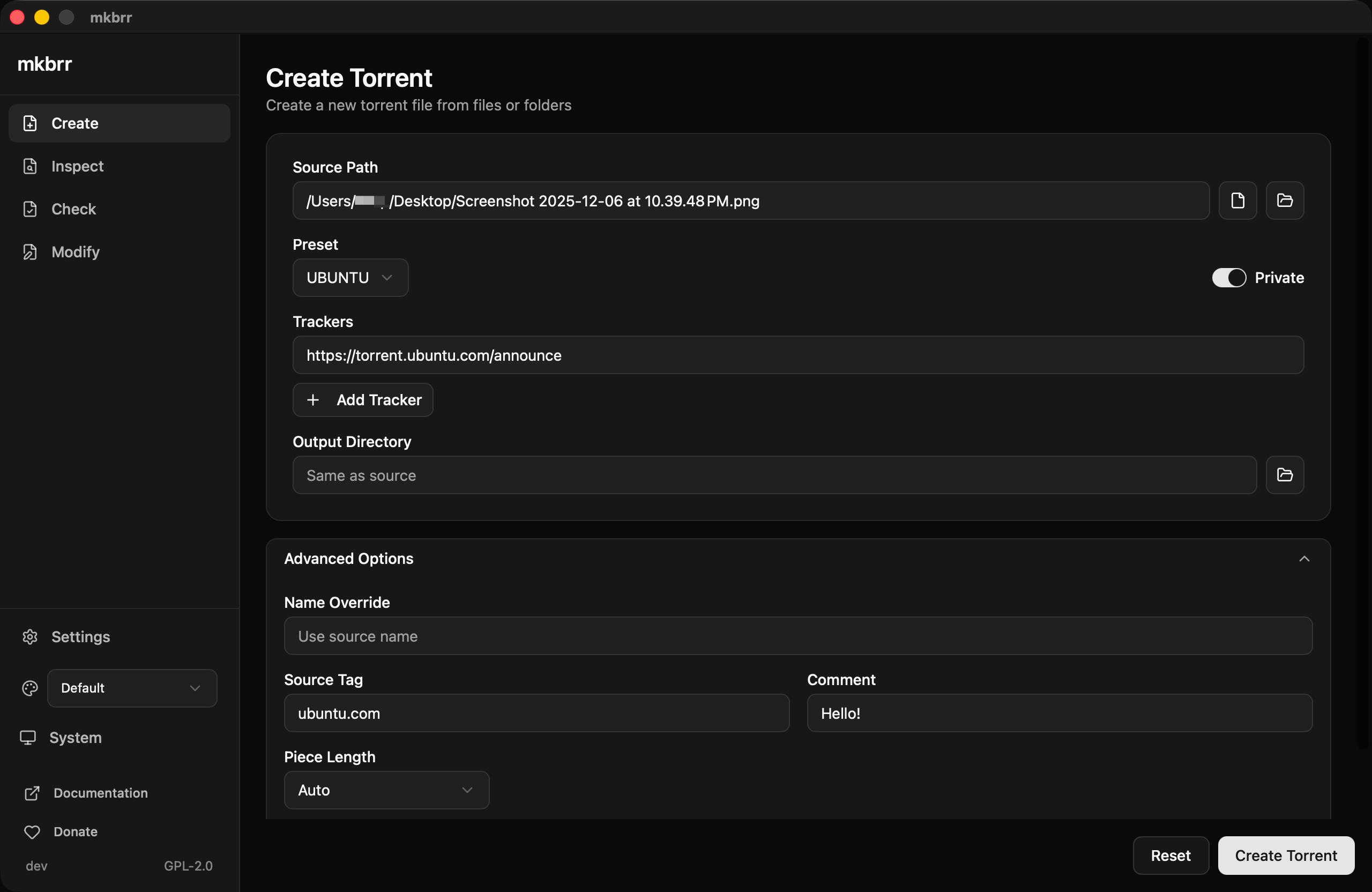
mkbrr includes a graphical user interface built with [Wails](https://wails.io/) for users who prefer a visual experience over the command line.
 ## Features
The GUI provides the same core functionality as the CLI with additional usability enhancements:
Create torrent files with tracker support, presets, and real-time progress tracking with hash rate display.
View torrent metadata with a searchable, collapsible file tree.
Verify torrent data integrity with detailed results showing good, bad, and missing pieces.
Edit torrent metadata without needing the original source files.
### Settings
The Settings page allows you to:
* Configure default worker count for hashing operations
* Manage presets (create, edit, delete)
* View and reload the preset file location
## Features
The GUI provides the same core functionality as the CLI with additional usability enhancements:
Create torrent files with tracker support, presets, and real-time progress tracking with hash rate display.
View torrent metadata with a searchable, collapsible file tree.
Verify torrent data integrity with detailed results showing good, bad, and missing pieces.
Edit torrent metadata without needing the original source files.
### Settings
The Settings page allows you to:
* Configure default worker count for hashing operations
* Manage presets (create, edit, delete)
* View and reload the preset file location
 ## Additional Features
Choose between light, dark, or system appearance modes, plus five color themes: Default, Autobrr (the default), Nightwalker, Swizzin, and Amethyst Haze.
Drag a file or folder onto any page to fill its path automatically — drop content to set the source on Create, a `.torrent` or content on Check, or a `.torrent` to Inspect or Modify.
When creating torrents, the GUI automatically detects tracker-specific requirements and suggests optimal piece sizes based on your content size and tracker rules.
Form state is automatically saved across sessions. If you close the app while filling out a form, your inputs will be restored when you return.
Full preset management with validation. Create, edit, and delete presets directly from the GUI without manually editing YAML files.
The Inspect page features an advanced file tree viewer with:
* Search functionality with auto-expand
* Collapsible folder structure
* File count per folder
* Smart expansion for smaller torrents
## Installation
Download the GUI binary for your platform from the [GitHub Releases page](https://github.com/autobrr/mkbrr/releases).
Download `mkbrr-gui_*_darwin_*.zip` and extract the `.app` bundle.
The app is not notarized, so macOS will block it by default. Use one of these methods:
**Option 1: Remove quarantine attribute (recommended)**
```bash theme={null}
xattr -cr /path/to/mkbrr-gui.app
```
**Option 2: Right-click to open**
1. Right-click (or Control-click) on the app
2. Select "Open" from the context menu
3. Click "Open" in the dialog
**Option 3: System Settings**
1. Try to open the app (it will be blocked)
2. Open System Settings > Privacy & Security
3. Click "Open Anyway" next to the mkbrr-gui message
Download `mkbrr-gui_*_windows_amd64.zip` and extract `mkbrr-gui.exe`.
Run the executable directly - no installation required.
Download `mkbrr-gui_*_linux_amd64.tar.gz` and extract the binary.
```bash theme={null}
tar -xzf mkbrr-gui_*_linux_amd64.tar.gz
chmod +x mkbrr-gui
./mkbrr-gui
```
### Building from Source
If you prefer to build the GUI yourself:
```bash theme={null}
# Clone the repository
git clone https://github.com/autobrr/mkbrr.git
cd mkbrr
# Install Wails CLI (one-time requirement)
make install-wails
# Build GUI for your current platform
make gui-build
# Or build for all platforms
make gui-build-all
```
The built application will be in `gui/build/bin/`.
## GUI vs CLI
Both interfaces provide the same core torrent operations. Choose based on your workflow:
| Feature | CLI | GUI |
| -------------------- | ----------- | ------------------------ |
| Create torrents | Yes | Yes |
| Inspect metadata | Yes | Yes |
| Check integrity | Yes | Yes |
| Modify metadata | Yes | Yes |
| Batch operations | Yes | No |
| Preset support | Yes | Yes |
| Preset management | Manual YAML | Visual editor |
| Progress display | Text | Visual with progress bar |
| File tree view | Text | Interactive & searchable |
| Scripting/automation | Yes | No |
| Theme customization | No | Yes |
| Drag and drop | No | Yes |
## Additional Features
Choose between light, dark, or system appearance modes, plus five color themes: Default, Autobrr (the default), Nightwalker, Swizzin, and Amethyst Haze.
Drag a file or folder onto any page to fill its path automatically — drop content to set the source on Create, a `.torrent` or content on Check, or a `.torrent` to Inspect or Modify.
When creating torrents, the GUI automatically detects tracker-specific requirements and suggests optimal piece sizes based on your content size and tracker rules.
Form state is automatically saved across sessions. If you close the app while filling out a form, your inputs will be restored when you return.
Full preset management with validation. Create, edit, and delete presets directly from the GUI without manually editing YAML files.
The Inspect page features an advanced file tree viewer with:
* Search functionality with auto-expand
* Collapsible folder structure
* File count per folder
* Smart expansion for smaller torrents
## Installation
Download the GUI binary for your platform from the [GitHub Releases page](https://github.com/autobrr/mkbrr/releases).
Download `mkbrr-gui_*_darwin_*.zip` and extract the `.app` bundle.
The app is not notarized, so macOS will block it by default. Use one of these methods:
**Option 1: Remove quarantine attribute (recommended)**
```bash theme={null}
xattr -cr /path/to/mkbrr-gui.app
```
**Option 2: Right-click to open**
1. Right-click (or Control-click) on the app
2. Select "Open" from the context menu
3. Click "Open" in the dialog
**Option 3: System Settings**
1. Try to open the app (it will be blocked)
2. Open System Settings > Privacy & Security
3. Click "Open Anyway" next to the mkbrr-gui message
Download `mkbrr-gui_*_windows_amd64.zip` and extract `mkbrr-gui.exe`.
Run the executable directly - no installation required.
Download `mkbrr-gui_*_linux_amd64.tar.gz` and extract the binary.
```bash theme={null}
tar -xzf mkbrr-gui_*_linux_amd64.tar.gz
chmod +x mkbrr-gui
./mkbrr-gui
```
### Building from Source
If you prefer to build the GUI yourself:
```bash theme={null}
# Clone the repository
git clone https://github.com/autobrr/mkbrr.git
cd mkbrr
# Install Wails CLI (one-time requirement)
make install-wails
# Build GUI for your current platform
make gui-build
# Or build for all platforms
make gui-build-all
```
The built application will be in `gui/build/bin/`.
## GUI vs CLI
Both interfaces provide the same core torrent operations. Choose based on your workflow:
| Feature | CLI | GUI |
| -------------------- | ----------- | ------------------------ |
| Create torrents | Yes | Yes |
| Inspect metadata | Yes | Yes |
| Check integrity | Yes | Yes |
| Modify metadata | Yes | Yes |
| Batch operations | Yes | No |
| Preset support | Yes | Yes |
| Preset management | Manual YAML | Visual editor |
| Progress display | Text | Visual with progress bar |
| File tree view | Text | Interactive & searchable |
| Scripting/automation | Yes | No |
| Theme customization | No | Yes |
| Drag and drop | No | Yes |